Turn on alerts and choose what reaches you
Alerts are Saath's notifications. Open Settings, tap Turn on under the alerts line, then tap Choose alerts to pick what reaches you. Your choices follow your account across phones, and your partner chooses their own.
Turn on alerts
- Tap the gear icon at the top to open Settings.
- Under Alerts are off on this phone, tap Turn on.
- When your phone asks, allow notifications for Saath. On an iPhone, add Saath to your Home Screen first and open it from there. This needs iOS 16.4 or later.
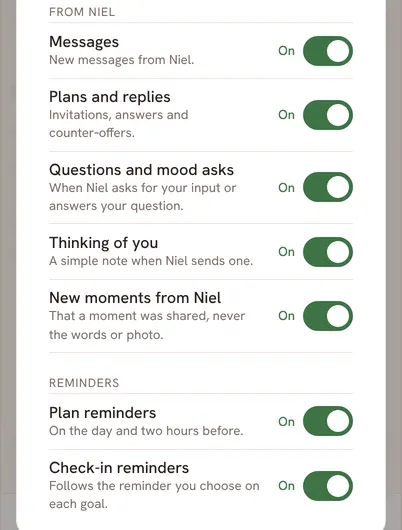
- Tap Choose alerts and switch off anything you do not want.
- Set Quiet hours if you want alerts to wait until the morning.
Questions about alerts
What can I choose?
You can switch each of these on or off: Messages, Plans and replies, Questions and mood asks, Thinking of you, new moments from your partner, Plan reminders and Check-in reminders. Your partner has their own list.
Does an alert show what my partner wrote?
By default, an alert says who it is from, not what it says. A new moment only says that one was shared, never the words or the photo. If you want more on your lock screen, switch on Show previews in notifications.
What do quiet hours do?
Alerts wait until quiet hours end. A plan that starts within two hours still comes through.
My alerts are not arriving
Check Focus and Saath's notification settings on your phone first. Then, in Settings, tap Send a test alert. If nothing shows up, tap Repair alerts on this phone and send another test.
Do my choices change my partner's?
No. Your choices follow your account across your phones, and your partner chooses their own.