Send and keep photos in Saath
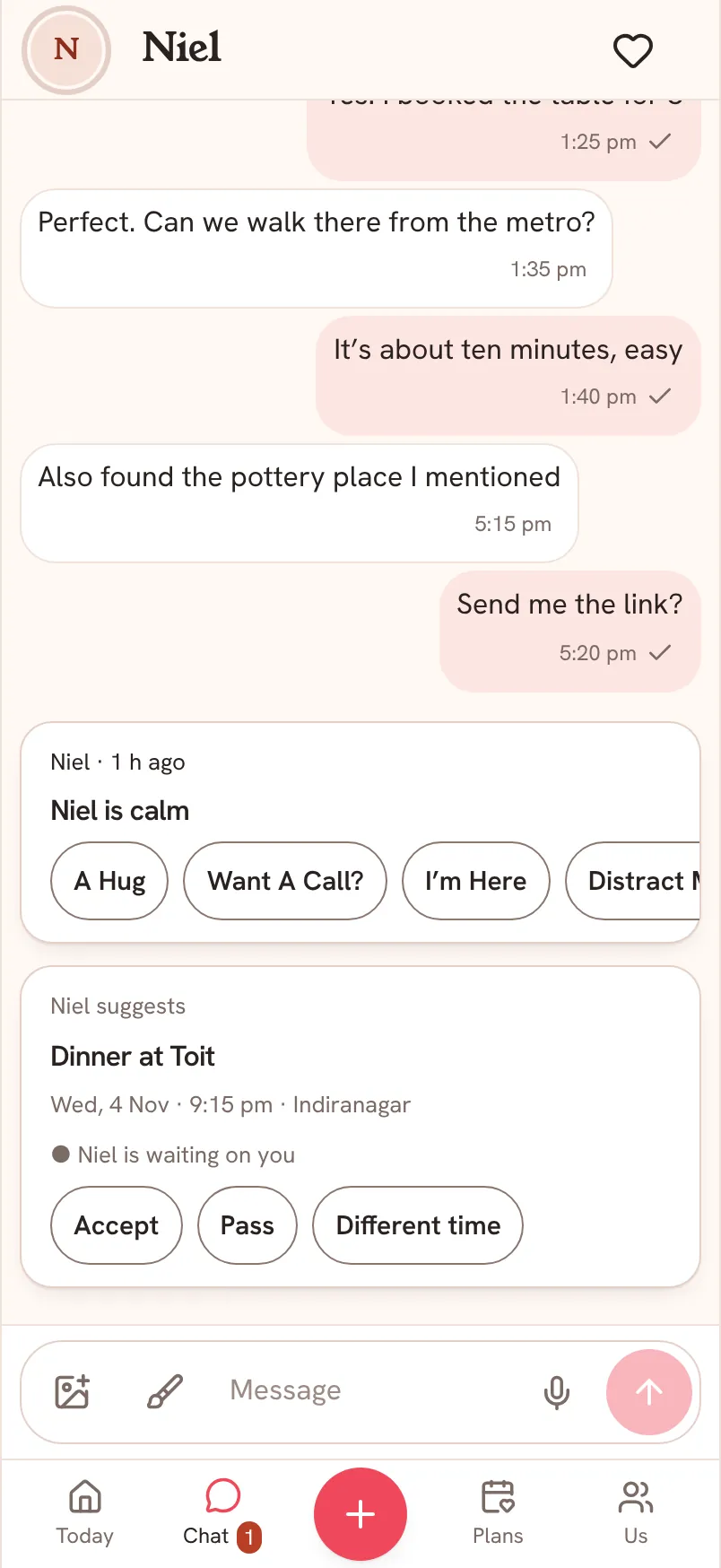
In Chat, tap the picture icon to attach up to ten photos or videos, write a caption, and send. You can also add a photo to a moment from the plus button, with the day and time it belongs to.
Send a photo in Chat
- Open Chat and tap Attach photos or videos.
- Choose up to ten photos or videos.
- Tap Quality and pick High quality or Original.
- Write a caption in the Add a caption… box if you like.
- Tap Send message.
Questions about photos
How do I add a photo to a moment?
Tap the plus button and choose a photo. In Add a photo, tap Choose photos or Camera, say something if you like, check the day and time, then pick who to Keep with. A moment keeps up to six photos.
What is the difference between the two quality choices?
High quality is smaller and sends faster. Original sends the file as it came from your camera. Your partner can always tap Download original to get the full file.
What if I have no signal?
The photo waits on your phone and sends when you are back online. See the guide on using Saath offline.
Can I remove a photo I sent?
Yes. Saath asks first: it removes the photo and its caption from the shared chat, and copies already downloaded cannot be recalled.
Who can see my photos?
Only you and your partner. Photos are kept in private storage and open only through short-lived links. A photo keeps the place it was taken if your camera saved it, and your partner gets the same file, so turn off location for your camera if you want to leave the place out.