Browse guides
Saath Couples App · Get started
Add Saath to your Home Screen
To use the Saath couples app like any other app on iPhone, open it in Safari, tap Share, then Add to Home Screen. Open Saath from that icon, and notifications can be turned on there.
Adding the Saath couples app to your Home Screen gives it its own icon, so it opens full screen like an app instead of in a browser tab.
Add Saath to your iPhone Home Screen
- Open Saath in Safari on your iPhone.
- Tap Share, the square with an arrow in Safari's toolbar.
- Scroll the list and tap Add to Home Screen.
- Keep Open as Web App switched on if you see it, then tap Add.
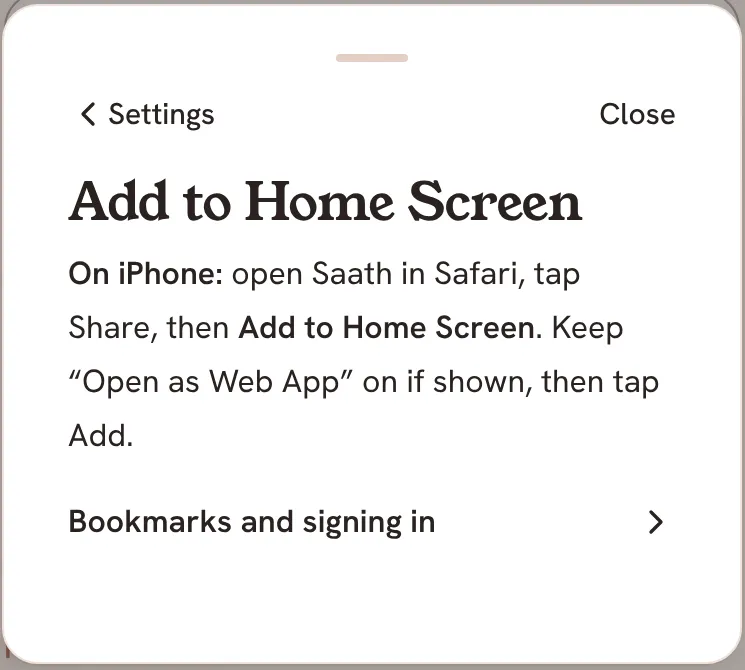
Saath keeps these same steps in the app. Open Us, tap the gear icon at the top, tap Help, then tap Add to Home Screen. This page shows only when you use Saath in a browser.
Saath Couples App
Join the waitlistWhat your partner sees
Nothing changes for your partner. The Home Screen icon only changes how Saath opens on your own phone.
Questions about the Home Screen app
Why does Saath ask me to add it to the Home Screen?
On iPhone, notifications work only from the Home Screen app, and only on iOS 16.4 or later. Saath says this on its notifications page: add Saath to your Home Screen, open it there, then turn notifications on.
Do I need to sign in again?
Maybe. You stay signed in on a device until you sign out or your browser clears its saved data. Your Home Screen app may need its own first sign-in.
Can I use a bookmark instead?
Yes. In Safari, tap Share and choose Add Bookmark. On a computer, bookmark the page with ⌘D on a Mac or Ctrl+D on Windows. A bookmark opens Saath in the browser, and notifications on iPhone need the Home Screen app.
Does the Saath couples app work the same from the Home Screen?
Yes. It is the same Saath, opened from its own icon. Your space and your partner are the same as in Safari.