Browse guides
Saath Couples App · Get started
Your name and photo in Saath
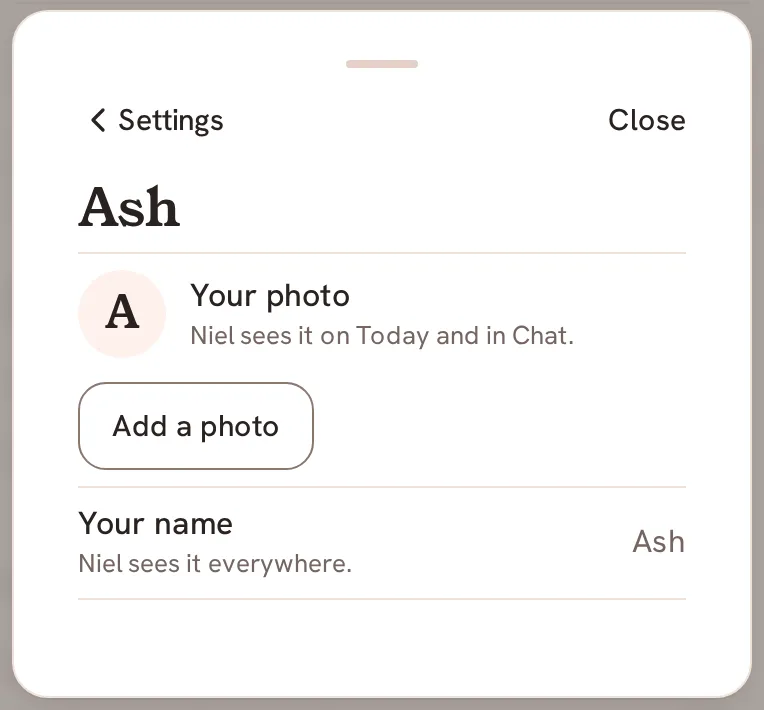
In the Saath couples app, your photo and your name are how your partner knows it is you. Open your settings, tap Add a photo, and pick a picture. Your name is shown there too, and your partner sees it everywhere.
Your photo and your name make the Saath couples app feel like yours, and this guide shows where to set them and who sees them.
Add or change your photo
- Open Us and tap the gear icon at the top to open Settings.
- Tap your name, the first row, which says "Photo, name, time zone".
- Under Your photo, tap Add a photo.
- Pick a picture from your phone. The row says Saving… while Saath stores it.
- To use another picture, tap Change photo and pick a new one.
- To take it off, tap Remove photo. Your initial shows instead.
Saath Couples App
Join the waitlistWhat your partner sees
Your partner sees your photo on Today and in Chat, and your name everywhere in Saath. Until you add a photo, they see your initial. The page says this under each row, with your partner's name.
Questions about your name and photo
Can I change my name?
On this page your name is shown under Your name, and it is the one you gave when you signed in. There is no button here to edit it.
Can I undo it?
Yes. Tap Change photo to swap the picture, or Remove photo to take it away. Your initial takes its place.
What if I have no signal?
The photo buttons wait. The page says Needs a connection. Try again when you are back online.
What if it fails?
Saath says Could not save. Try again. Your earlier photo stays. Tap the button again.
Who else can see my photo in the Saath couples app?
The page says your partner sees it on Today and in Chat. Saath is a private app for two, so it is shown to the two of you.